
Article editor
The article editor is where you produce the story. A story lives in a bucket, independently of the websites, print editions, syndication services or automations that may eventually use it. You can distribute the same article to several destinations through feeds.
Start with the reporting and editorial text. Let the metadata tools help with routine enrichment, then review the results. You do not need to fill every optional field to produce a complete story.
Content
Section titled “Content”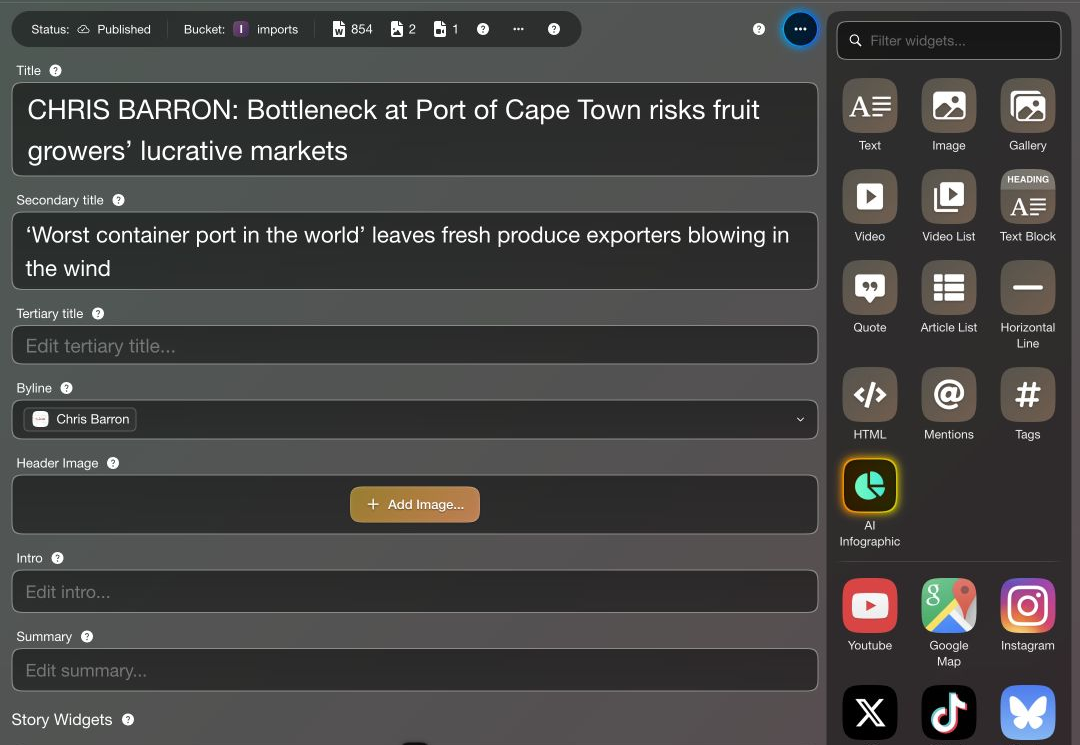
The header keeps the story title, editor settings, preview eye and Publish Article control within reach. The tabs divide the work into Content, Metadata, Workflow, Placements, Revisions and Messages. Question marks beside controls offer short explanations and link back to this guide.
The status strip shows the story’s workflow status, bucket and counts. Publication actions also update workflow status, so a published story can show Published here. Word counts come from body text widgets. Image counts include supported story imagery, header and custom thumbnail images. Video counts combine supported providers: one YouTube widget and one TikTok widget count as two videos.
| Field | Editorial purpose |
|---|---|
| Title | The main story headline. |
| Secondary title | A supporting headline line, such as a deck. |
| Tertiary title | An additional headline line for products that use it. |
| Header Image | Optional hero artwork for a deliberate visual treatment. |
| Intro | The lead-in or opening paragraph. |
| Summary | A separate editorial summary, presented where the publishing product supports it. |
The skin decides where headline lines appear. Do not assume that a secondary or tertiary title always becomes a kicker above the headline. Use preview to check the intended product.
A header image might become a full-width banner or a portrait beside the story, depending on the skin. Use it when the visual merits that treatment, such as a special report. Ordinary story images belong among the body widgets. Leaving Header Image empty does not prevent NewsTeam from finding a listing thumbnail.
Byline
Section titled “Byline”Open Byline to reveal its two kinds of credit:
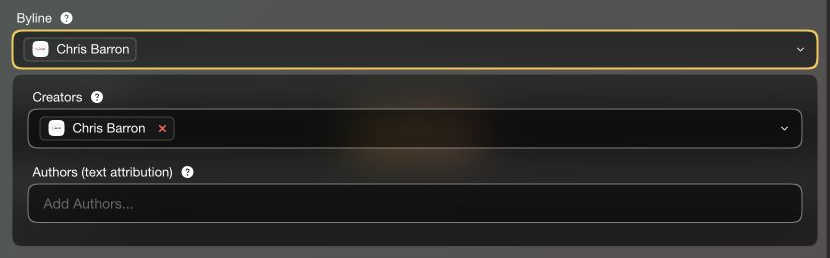
Creators are managed contributor profiles. They support contributor pages and connections to work across articles, videos, images and other widgets. “Creator” is broader than “author”: a photographer or video journalist can contribute without writing the story.
Authors (text attribution) is plain text for credits that do not need a managed profile, such as an external publisher. Suggestions draw on previous organization usage, weighted by frequency. You can add several entries and mix them with creators.
Reorder entries within each list to set credit order. The byline combines linked creators first, followed by text authors. For example, a managed reporter profile can be followed by the text credit “with agency reporting”. The screenshot shows the two fields without adding a credit to the sample story.
Read more about creator profiles.
Widgets
Section titled “Widgets”The widget palette builds the body from text, images, galleries, quotes, video and supported providers. Add the appropriate widget, then use its controls to edit its content and metadata.
Open a widget’s Metadata control to describe the individual item. The standard popup provides tags, mentioned entities, creators and location for supported indexed widget types.
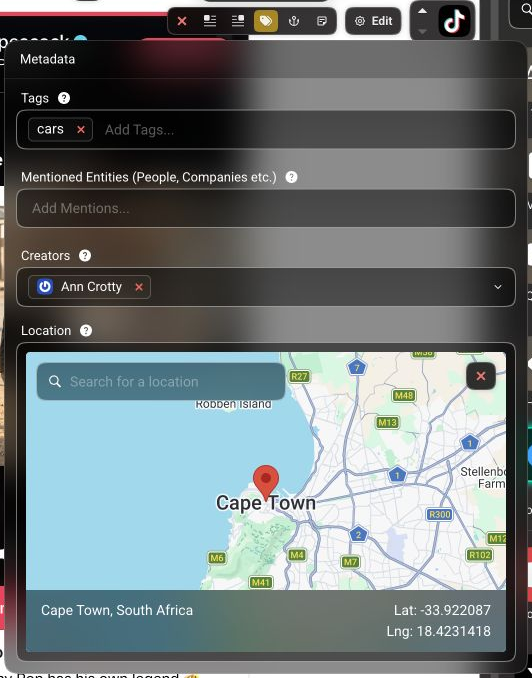
This X example uses the shared metadata popup. Images have a specialized metadata popup with additional title, keywords, caption and credit fields. A quote can carry shared metadata as well as its quotation and citation. The photographer’s credit on an image need not be the same as the article byline.
Provider widgets retain structured information where supported—such as author, duration and preview imagery—rather than only an embed code. Supported provider thumbnails are ingested as images. This is why a video-only story can obtain a thumbnail from its YouTube preview image.
On publication, supported indexed widgets become independently discoverable with their original article context. A product can, for example, show a contributor’s quotes, videos or visuals and link readers back to the stories. Available fields and indexed types vary; not every embed exposes the same metadata.
See Articles and Digital Asset Management for the broader content model.
Inline editorial notes
Section titled “Inline editorial notes”In a text widget, select reminder text and use Note in the rich-text toolbar to mark it as an inline editorial note. This keeps a fact-check request, a reminder to cut a section for print, or a handoff comment beside the passage it concerns.
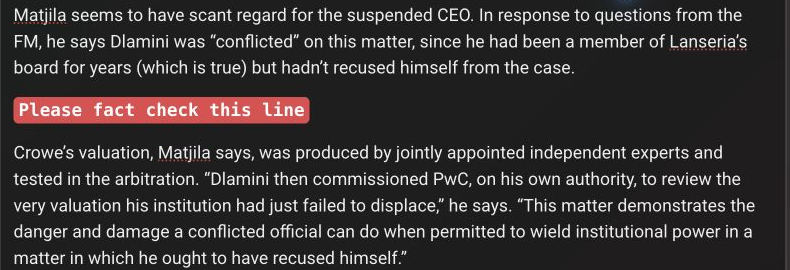
Use Editor Preferences → Show Notes to show or hide these notes while editing. Hiding them changes the editor display; it does not delete the reminders.
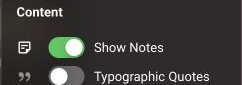
Notes can remain in the stored editorial package indefinitely for later work; there is no need to delete them just to publish. NewsTeam V1, the public API, always suppresses editorial notes from its output automatically, keeping these internal reminders out of reader-facing content.
To remove a reminder, delete its text. Toggling Note off instead converts the selected note back into ordinary story text, so do not use that as a way to hide a reminder from readers.
Editor preferences
Section titled “Editor preferences”Open the cog in the article header to adjust the editing workspace. The following screenshots show two cropped details of the Preferences popover.
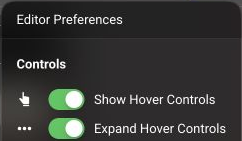
- Show Hover Controls: reveal widget controls as you move over widgets, keeping their actions close to the content.
- Expand Hover Controls: show the available widget actions expanded instead of keeping additional actions tucked away.
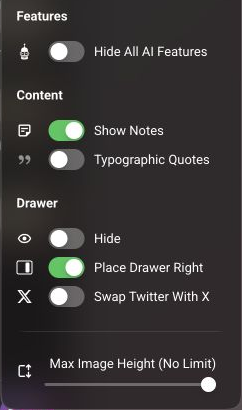
- Hide All AI Features: hide AI controls from your editing workspace when you prefer to work without them in view.
- Show Notes: show or hide red contextual editorial reminders. This changes their visibility in the editor, not whether they are retained in the story package.
- Typographic Quotes: convert ordinary straight single and double quotes to curly quotation marks, and straight apostrophes to typographic apostrophes, as you type in supported text. Unlike the display preferences, this changes the text itself; review punctuation where exact characters matter.
- Drawer → Hide: hide the widget drawer to give the story more editing space.
- Place Drawer Right / Left: choose which side holds the widget drawer.
- Swap Twitter With X / Swap X With Twitter: choose the X name and logo or the Twitter name and bird for the editor’s provider controls. The label offers the alternative to your current choice.
- Max Image Height: limit how tall images appear in the editor, or choose no limit. This helps you move through image-heavy stories without changing the published image or the story’s product presentation.
Listing
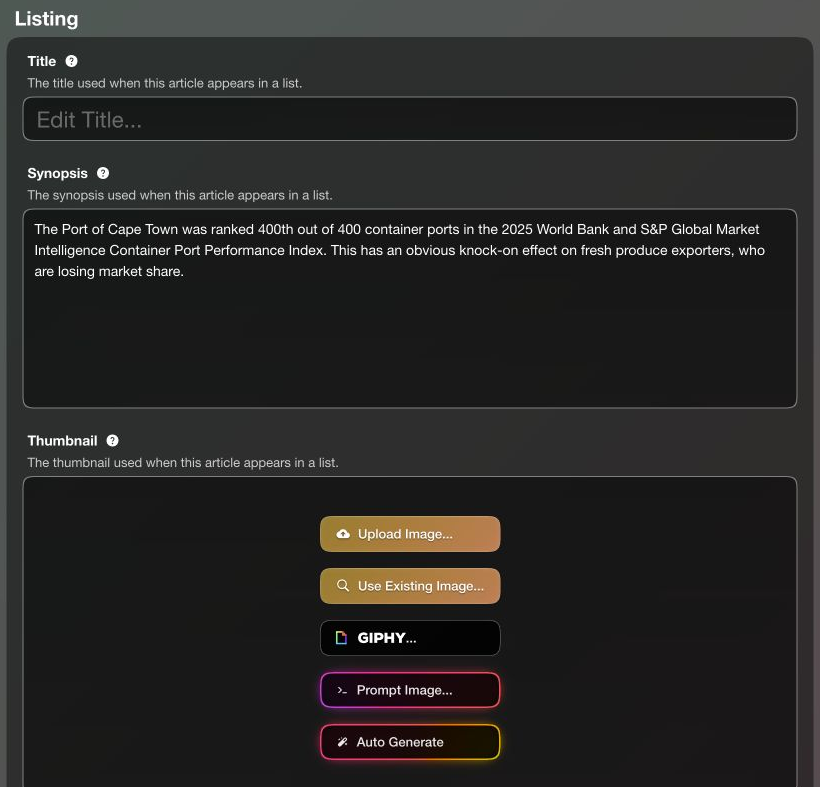
Section titled “Listing”In Metadata → Listing, optional overrides change the story’s appearance in listings without rewriting its editorial content.
| Listing value | How NewsTeam chooses it |
|---|---|
| Title | Custom listing title, otherwise the story title. |
| Synopsis | Nonblank custom synopsis, otherwise the intro when present, otherwise an extract from body text widgets. |
| Thumbnail | Custom thumbnail, otherwise header image, otherwise the first eligible image from supported widgets. |
The body synopsis is an automatically shortened extract, not necessarily a whole paragraph. An intro that exists but contains empty text can supply an empty synopsis; check the listing preview if it looks blank. Summary is a separate editorial field and is not part of this fallback sequence.
For a routine story, keep the main headline and body imagery, and only override the listing values when you need a specific card treatment. For example, shorten a long headline for a homepage card, write a sharper listing synopsis, or choose a different crop or image as the thumbnail.
Metadata
Section titled “Metadata”Draft the content first, then run Metadata Wizard and review its suggestions. Check names, locations, keywords and share copy against the reporting. Automation reduces duplicate entry; the editor remains responsible for the result.
Context, attribution and destinations
Section titled “Context, attribution and destinations”| Control | When to use it |
|---|---|
| Geo Tag | Locate the story at an area, town or address. Review inferred locations. |
| Locale | Check the language and region. New stories inherit the bucket locale. |
| Sponsored | Identify paid-for content. Optionally select a managed sponsor profile for its name and link. Remove selected sponsors before turning sponsorship off. |
| Related Articles | Make explicit editorial picks. Leave empty when the product should choose dynamic recommendations. |
| Social Share Text | Supply suggested copy for supported sharing actions, independently of the synopsis. |
| Redirect URL | Make the delivered article link point to an external destination, such as an election mini-site, while retaining listing metadata. |
| Canonical Link | Identify an original source, such as the original Bloomberg URL for licensed syndication. It is distinct from the redirect destination. |
See Sponsored Content and Distribution & Syndication for the organizational setup behind these controls.
Classification and presentation
Section titled “Classification and presentation”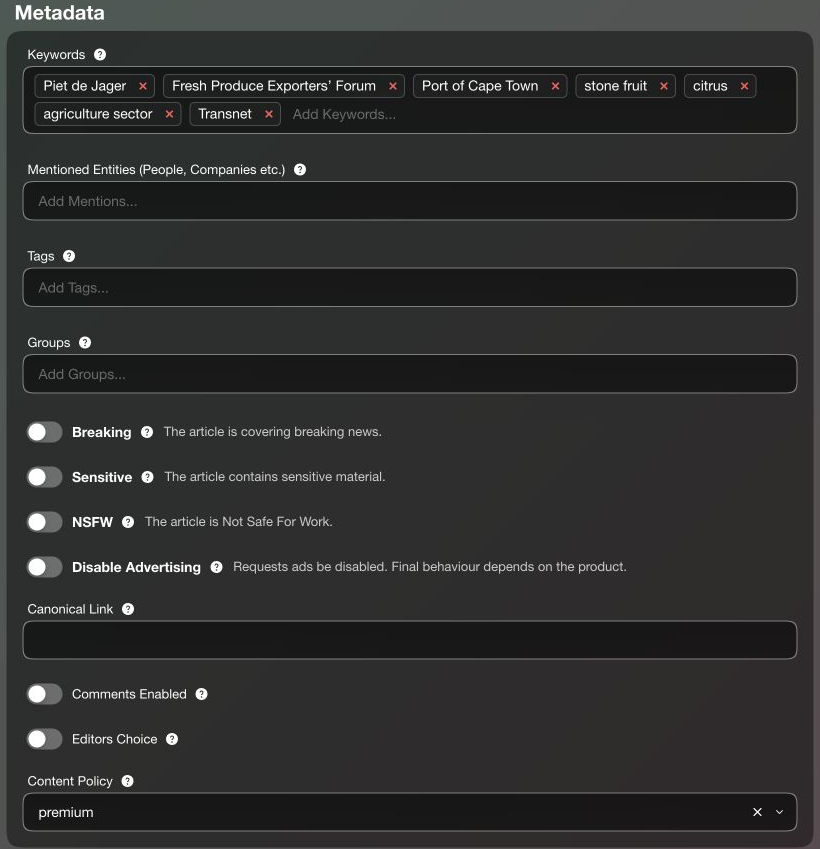
Keywords describe the story with useful search terms. Organization autocomplete reflects prior usage weighted by frequency. Reuse relevant terms and discard suggestions that are incidental to the reporting.
Mentioned Entities identify subjects such as people, companies, countries and policies. Consistent names connect related coverage across articles and widgets.
Tags are topics or hashtags that products can expose to readers. Groups are internal backshop collections, such as a print edition or an editorial project. For a port investigation, a public tag might be “Transport”, while an internal group might be “September investigations package”.
Breaking, Sensitive, NSFW, Disable Advertising, Comments Enabled and Editors Choice are signals for consuming products. A site may use Sensitive to choose warnings or advertising treatment; another product may use different rules. These flags do not guarantee a universal presentation or enforcement behavior. Editor’s choice is also separate from featuring a story in a particular feed.
Content policy
Section titled “Content policy”Choose a named organization Content Policy when a story needs one. Leave it unset for default free access; there is no need to create a “free” policy merely to publish an ordinary article.
A newsroom may describe policies as premium, registration access or rewarded-ad access, but those are possible commercial arrangements, not a promise that every access method is implemented. Policy enforcement is still in development. Confirm the destination product’s behavior before relying on this field to restrict access. See Paywalls & Monetization for the current model and implementation status.
Workflow
Section titled “Workflow”This tab is another view of the same article on the organization’s newsroom workflow board. Assigning it or changing workflow status does not create another copy of the story.
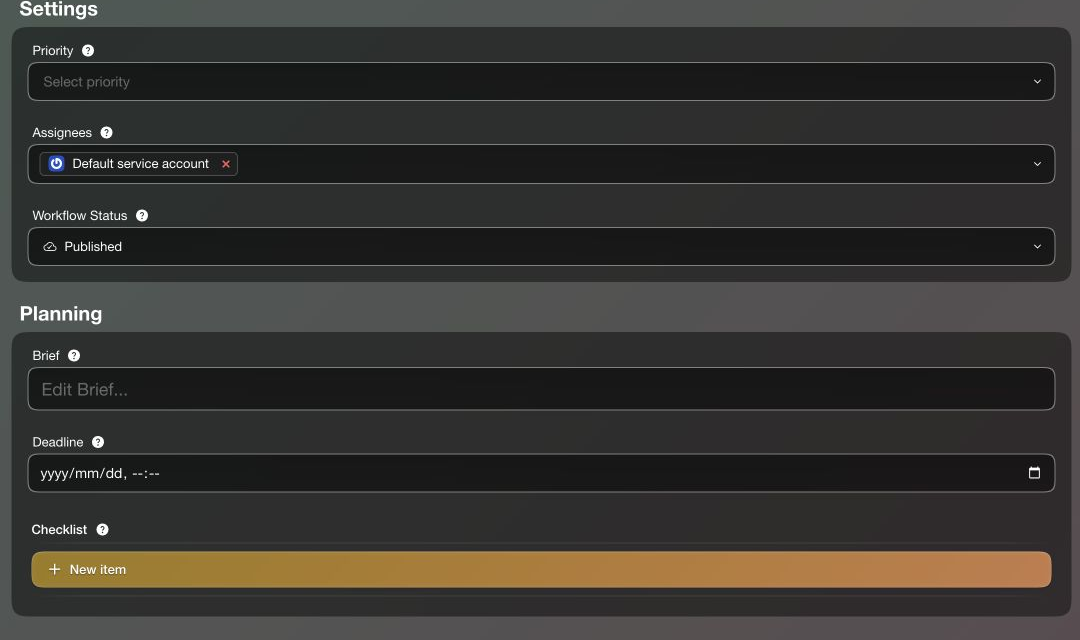
New stories normally start in Writing. If a brief or deadline is supplied at creation, they start in Planned, unless a status was explicitly selected. You can add or edit planning details later.
- Priority: critical, high, medium or low. In the board’s priority ordering, even low comes before unset priority; newer stories break ties.
- Assignees: organization users responsible for progressing the story.
- Workflow Status: its place in the editorial process. Publication is a separate action, although publishing also updates workflow status.
- Brief: the commission, angle, reporting needs and expected result.
- Deadline: the editorial delivery date, not the publication schedule.
See Workflow for the board and organization-wide process.
Checklist
Section titled “Checklist”Choose New item, or edit an existing item, to reveal its full task details.
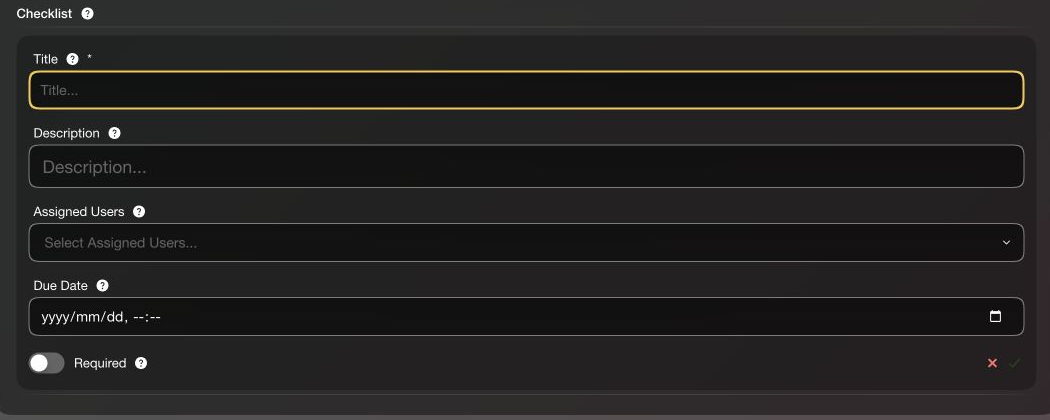
Give the item a clear Title, then add a Description, optional Assigned Users and Due Date. These assignments belong to the task and can differ from the article’s assignees. Save with the checkmark; cancel with the cross. The screenshot shows an unsaved empty item.
For example, “Verify the port ranking” might ask a researcher to check the original report and record the relevant year and methodology. Mark that item Required if the story must not go out until the check is complete.
An incomplete Required item prevents publication. An overdue date highlights unfinished work; it is the Required flag, rather than the due date alone, that creates the publication gate. Mark tasks complete as the work is done.
Placements
Section titled “Placements”A placement adds the story to a distribution feed. Feeds can represent website sections, syndication, print or automation. You can publish without placements and collect or curate the story into feeds later; whether it appears in a particular product depends on that product’s selection rules.
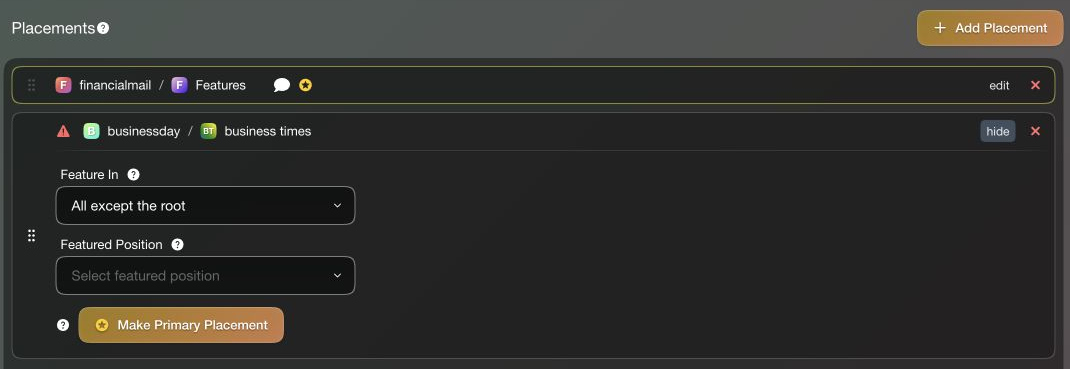
Use Add Placement to select a feed. The first placement is primary, marked with a star. Make Primary Placement moves another placement to the front. Primary order is separate from the story’s position in a feed’s featured list; destination products can use primary placement as section context.
Featuring
Section titled “Featuring”Featuring determines whether the story enters a feed’s manually ordered featured list. It is separate from being published or placed in the feed.
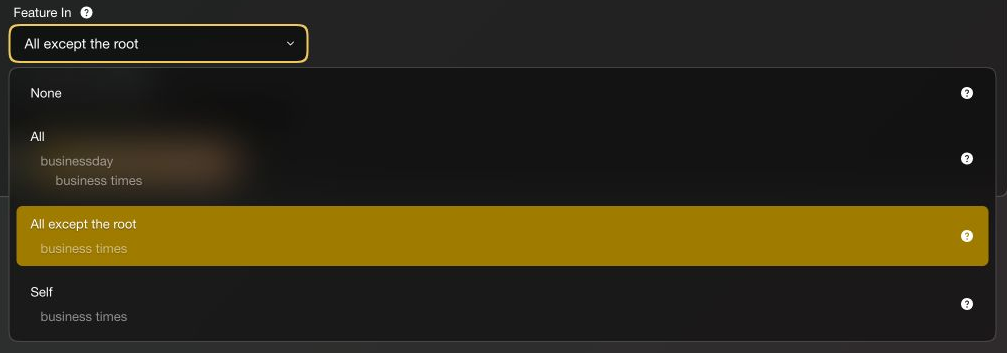
For a hierarchy Financial Mail → News → Western Cape:
| Feature In | Featured lists targeted |
|---|---|
| None | No featured list. The placement remains. |
| All | Western Cape, News and the Financial Mail root. |
| All except the root (default) | Western Cape and News. |
| Self | Western Cape only. |
With the default, the root can still include the story in its chronological results when its feed selection includes descendants. Excluding the root from featuring does not mean removing the story from ordinary results.
Featured Position defaults to first when left unset, inserting ahead of other unpinned items. Feeds can hold up to 20 featured stories, with a smaller configured limit where applicable; ordinary results continue beyond the featured selection. Published placements lock these initial featuring settings. Use the feed editor to reorder, pin or refeature published stories, including older coverage.
Prearranged positions are useful for a scheduled edition or a curated package. For day-to-day news, the defaults may be sufficient. Feed updates and downstream product rules still govern the final result; verify the feed after publishing when precise order matters.
See Feeds for distribution and curation concepts.
AI and article actions
Section titled “AI and article actions”The editor has two different ellipsis menus.
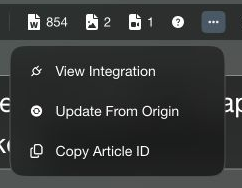
The ordinary ellipsis in the status strip contains article actions. Imported stories expose View Integration and Update From Origin. Organization integrations can contribute actions such as sending to print or pushing a notification when configured. Available actions depend on the article and organization. Updating from origin is an editing action—review its implications before using it on locally edited copy.
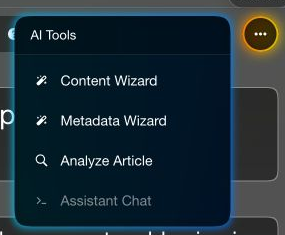
The glowing ellipsis contains AI assistance:
- Content Wizard: propose editorial text such as headlines, intro and summary.
- Metadata Wizard: suggest enrichment such as synopsis, share copy, keywords, entities and location.
- Analyze Article: research the web, review the story and surface possible factual issues, missing context and assessments with citations.
Review proposed changes and consult cited sources. These tools assist editorial judgment; they do not guarantee factual accuracy. An unavailable action, such as the disabled Assistant Chat shown here, is not ready to use in that context. See AI Features.
Preview
Section titled “Preview”Open the eye beside Publish Article, then select the intended site.
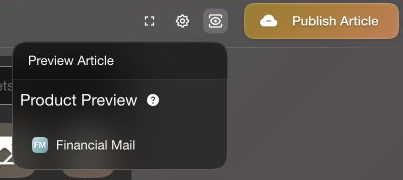
A configured site URL receives the article preview route. Where there is no site URL, a linked app can provide the development/starter preview. A custom site can supply its own presentation through that route. Sites need a URL or connected app before they can preview; creating a story alone does not create a preview destination.
Check headlines, byline, hero treatment, body widgets and listing choices in the intended product. Presentation flags are product instructions, so the preview is also the place to check how that product uses them.
Revisions and messages
Section titled “Revisions and messages”Revisions and Messages are still in development. Revision data and some preview/restore controls exist, but the article tab is not yet a complete version-history interface for general use.
Messages is intended to bring together system activity, user and automation actions, and contextual discussion. Discussion with user or entity mentions is not documented here as an available editor feature. See Articles and Messaging & Activity for current scope.